Guide · 10 steps
Chatty: how to use your own ManyChat for Instagram
Everything you do with Chatty: the DM inbox, the classic "comment GUIDE and I'll send it", the flow builder, contacts, analytics, the Claude assistant and the mobile app.
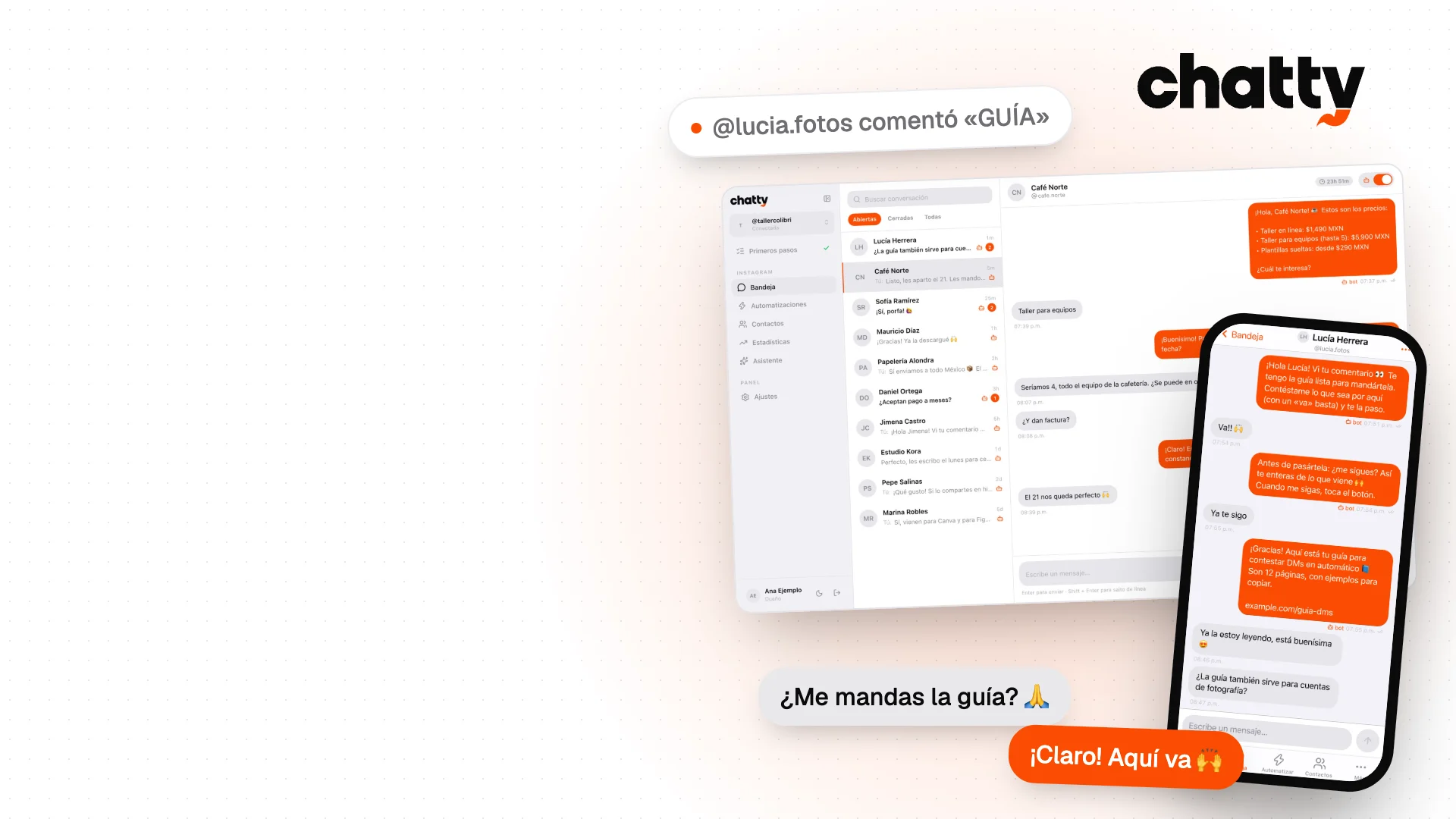
Your Instagram answering by itself, on your own system
Chatty is a panel that automates your Instagram DMs, like ManyChat, but installed on your own Firebase account. Your conversations and contacts are yours, there's no subscription or per-contact fee (for one person or a small team, Firebase costs cents a month) and nobody can raise your price.
This guide is about using it: what each section does and how to build your first automations. Your AI agent (Claude Code, Cursor, Codex…) does the install with you, step by step.
Heads-up: the panel itself is in Spanish. This guide uses the Spanish names of each screen, with the English in parentheses.
Get it — One-time payment. Includes all the code, the guides and the skill that lets your agent install it with you.
Step 1: Install it with your agent
When you buy it you download a .zip. Unzip it into a folder, open that folder in Claude Code (or Cursor, Codex, Gemini CLI) and ask it to install Chatty. The skill tells it exactly what to do: it runs the commands, and you only sign in to your accounts (Google, Firebase, Meta) when it asks.
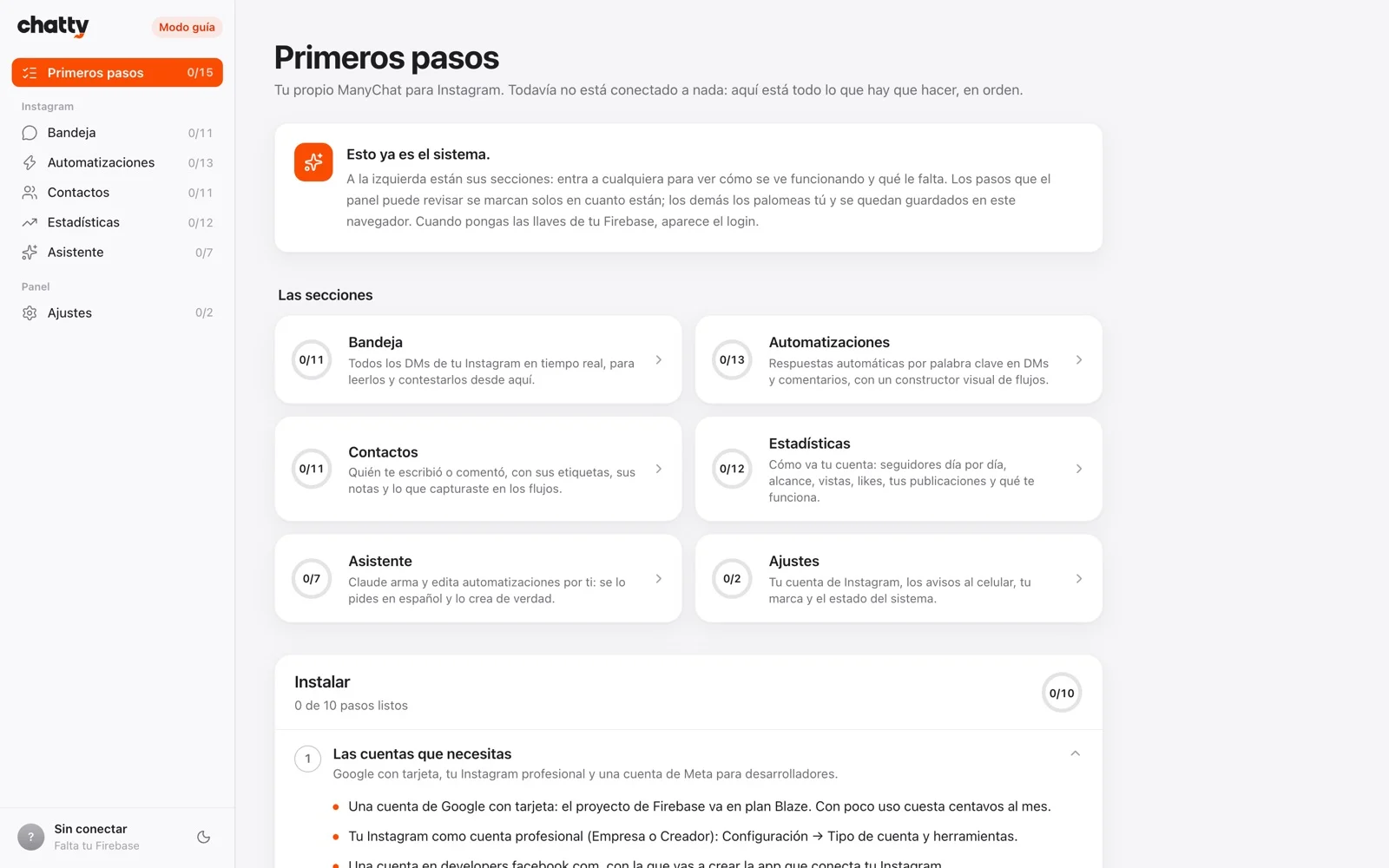
First it shows you Chatty running on your computer in guided mode, with sample data, in two minutes. The full setup with your Instagram connected takes one to two hours, mostly in Meta's dashboard.
Paste it in your agent, inside Chatty's folder
Install Chatty with my Instagram @my.account. Follow SKILL.md step by step: show me guided mode first, then create my Firebase project, walk me through Meta, deploy it and turn on the cron. Tell me every time I need to sign in or click something.
Step 2: Primeros pasos (First steps): your checklist
At the top of the sidebar there's «Primeros pasos». It shows what each section still needs and ticks itself as things really start working: the variables, your Instagram connected, the first DM, the cron.
If a section isn't working, go there first: every step has the commands, the buttons to click and how to tell it's done.
Step 3: Bandeja (Inbox): every DM, live
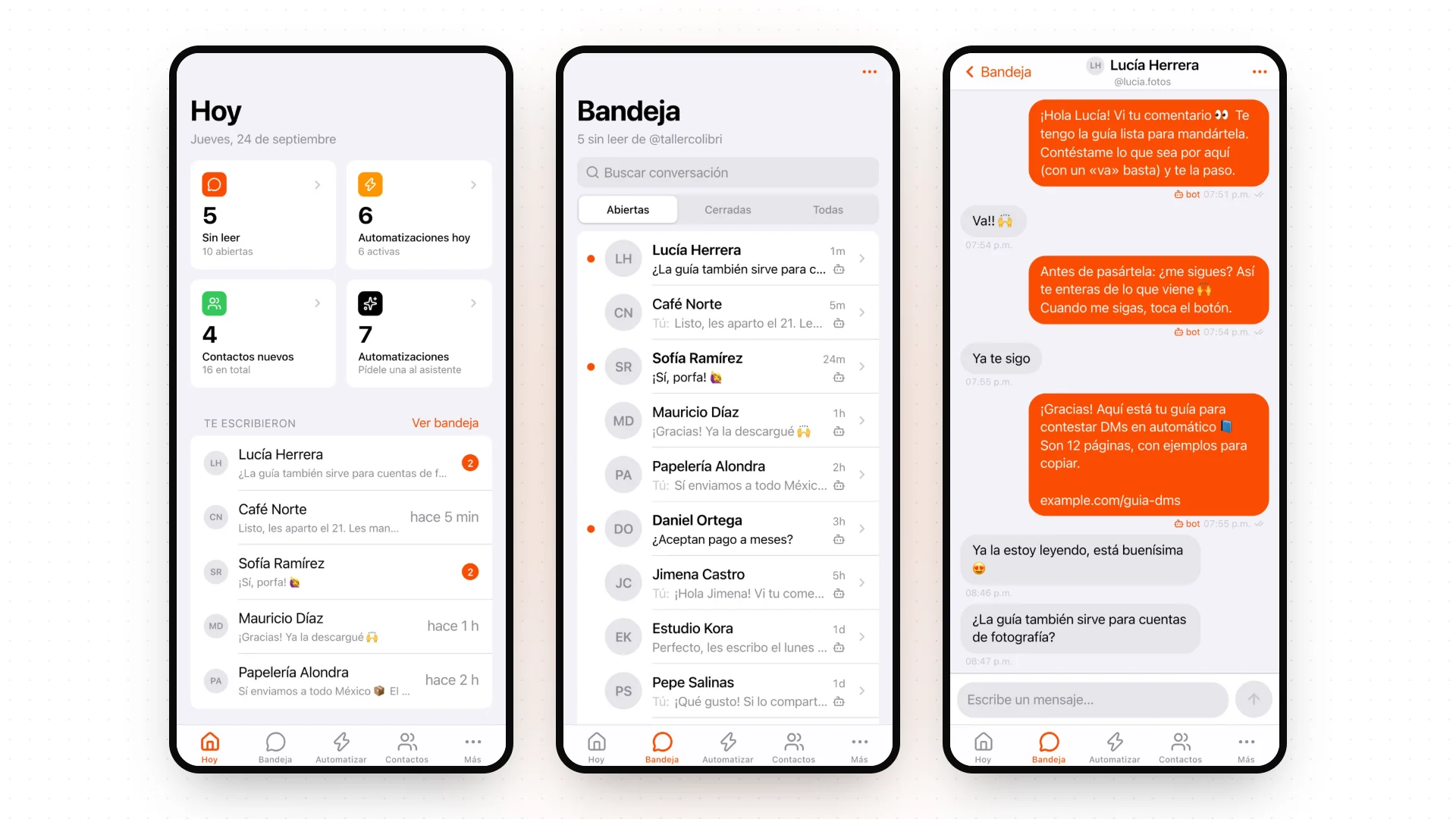
Every DM, comment and story reply lands in the Inbox within seconds, no refresh. You can see who answered: the bot (the little robot) or you.
Reply from there. If you want to handle someone yourself, pause the bot in that conversation with the switch at the top: automations stop answering that person until you turn it back on. Close conversations you're done with to keep only the open ones.
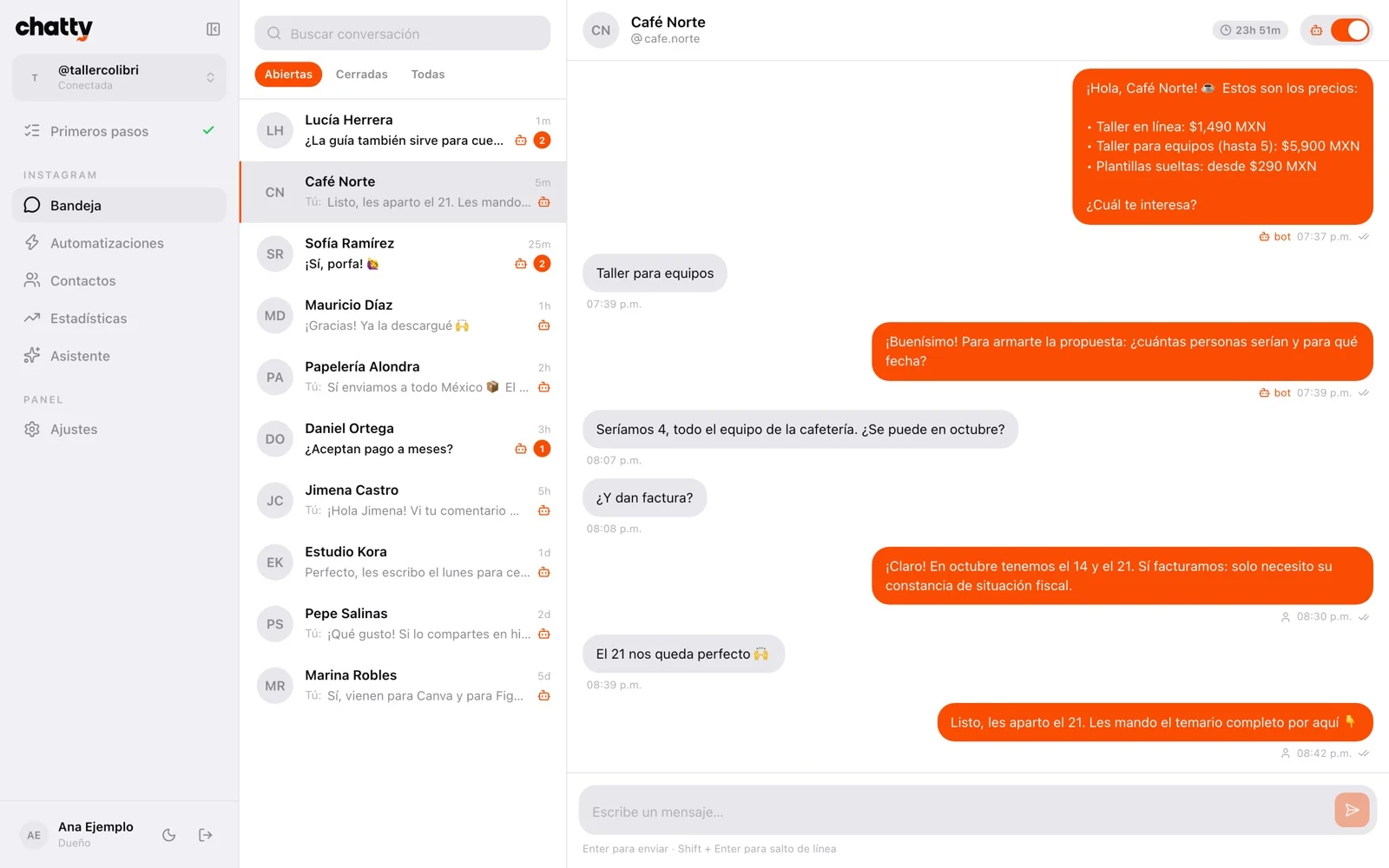
The clock at the top of each conversation is Meta's 24-hour window: the bot can only write within 24 h of the person's last message. You can still reply by hand for up to 7 days.
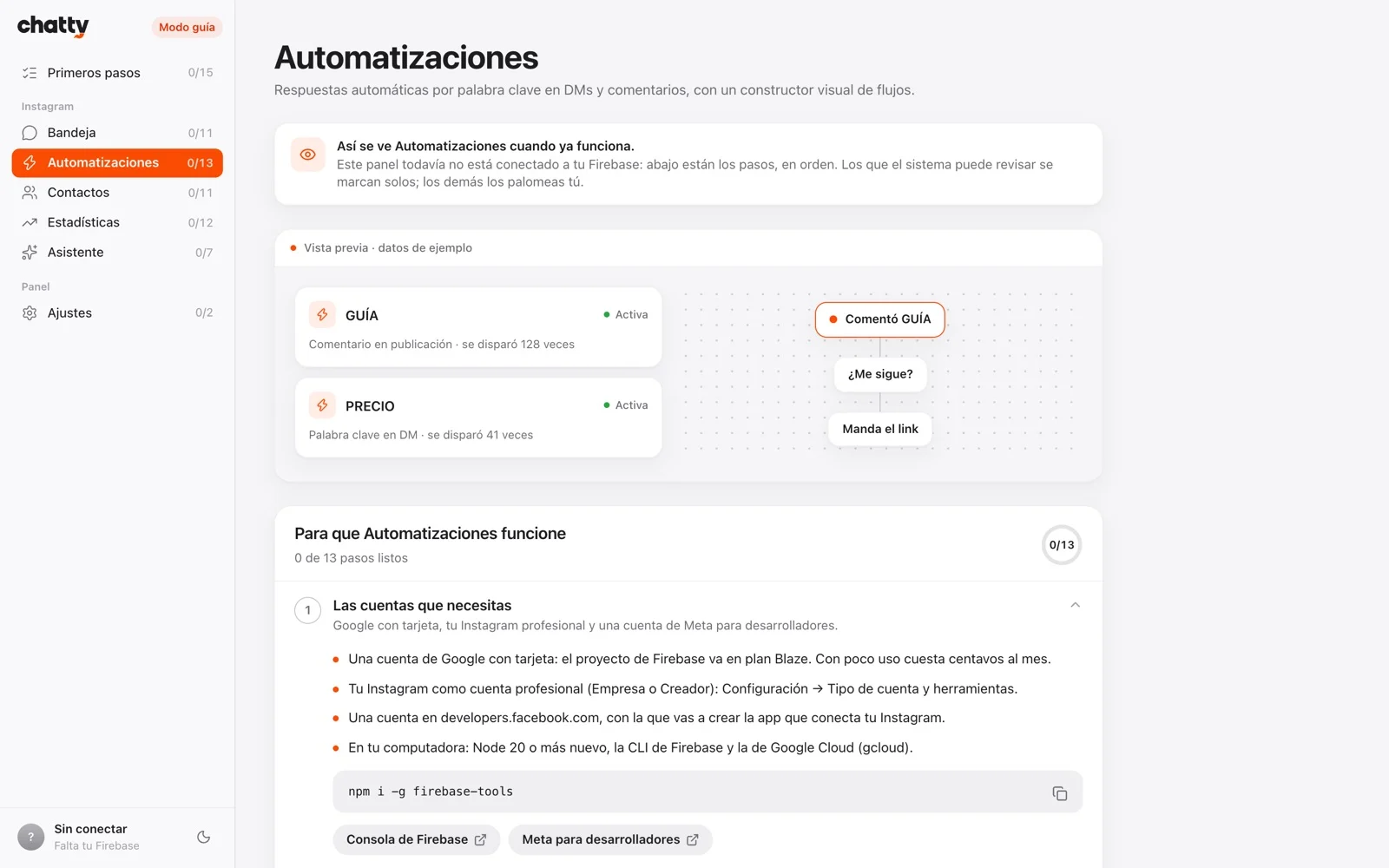
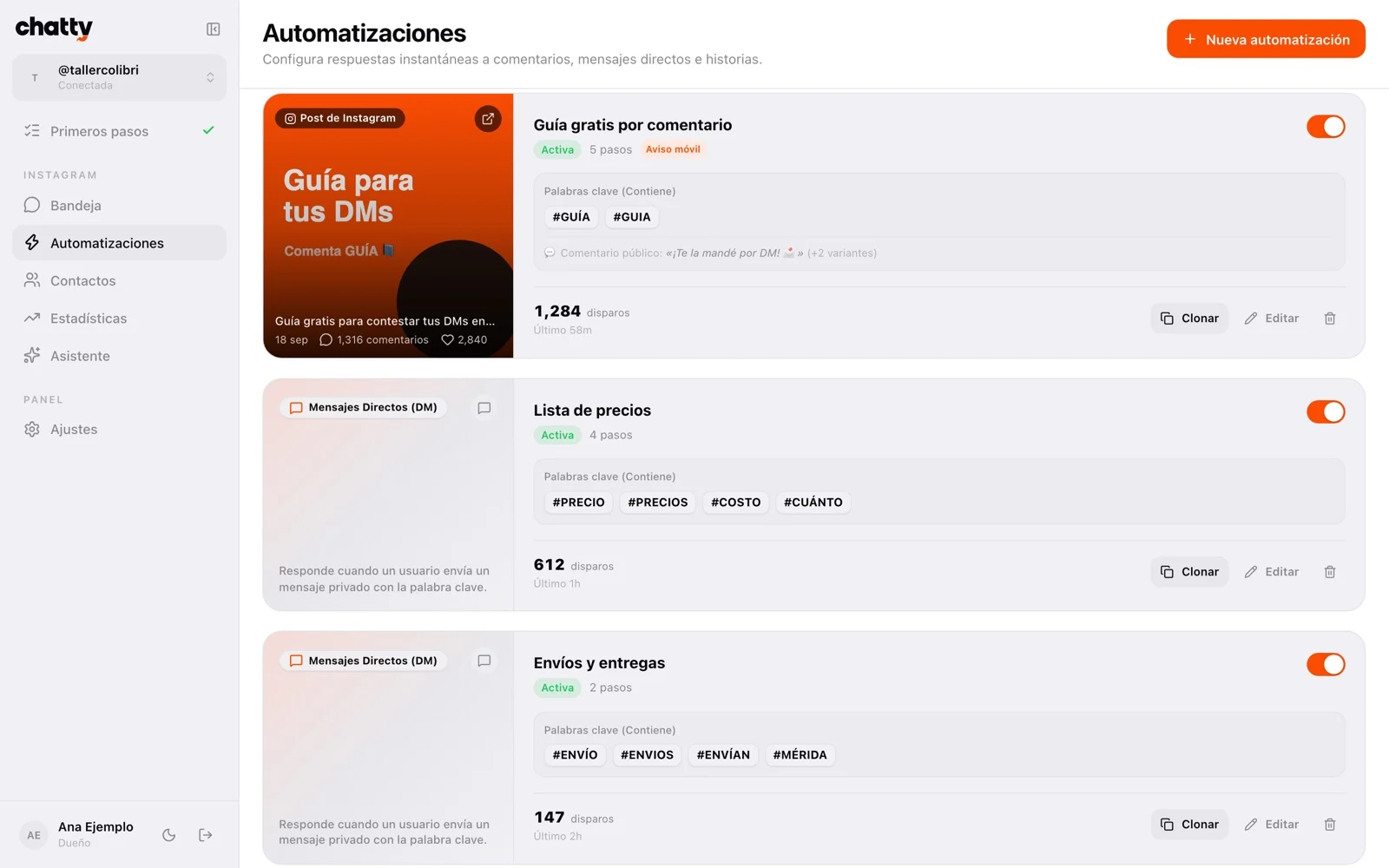
Step 4: Automatizaciones (Automations): comment GUIDE and I'll send it
An automation is a trigger plus a flow. The most common one:
- Automatizaciones › Nueva (New).
- Trigger: comment on a post. Keywords: guide, guia (comma-separated; case doesn't matter).
- Pick the post, or leave it on all of them.
- Write two or three public replies ("Sent it to your DMs 🙌"): one goes out at random so it doesn't look robotic.
- Open the flow, replace the first message with your text and link, and turn it on.
There are also triggers for a keyword in a DM, story replies, first message and a default reply. With the bell icon you get a push every time it fires.
Step 5: Flujos (Flows): build the conversation by dragging nodes
Every automation runs a flow on a canvas: messages, buttons (up to 3), quick replies, links, files, «Ask and save», «Ask them to follow», waits, conditions, tags, «Hand off to a human» and «Call an API» (to send the lead to your CRM, a sheet or Zapier).
Ideas that work: followers only (comment → ask them to follow → link); lead capture (DM "PRICE" → ask for their email → tag lead); after hours (default reply → your hours → hand off to a human).
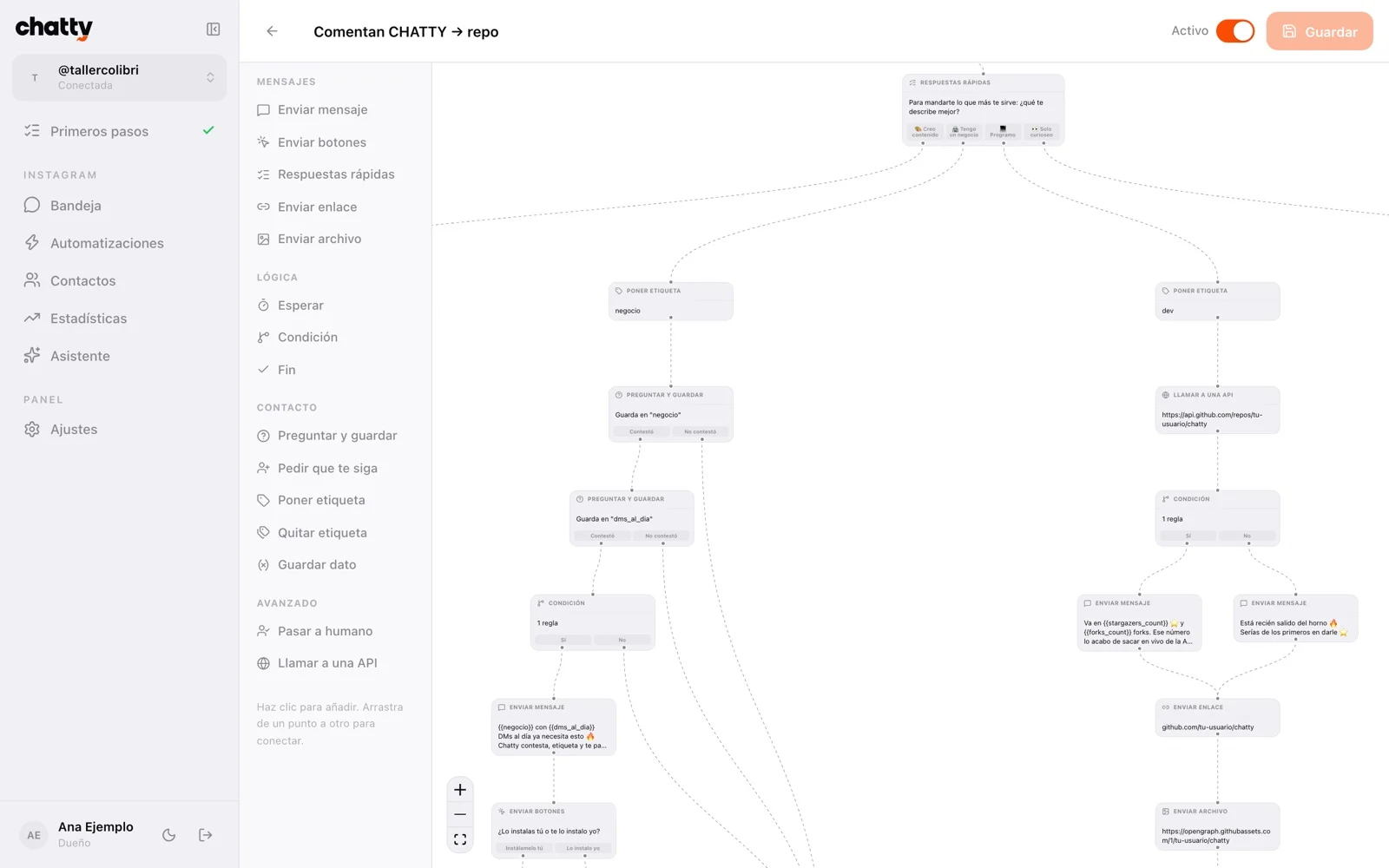
You can use variables in messages: {{first_name}}, {{username}} or any data you saved ({{email}}, {{city}}). And note: a comment can only be answered with a text DM; if the first node has buttons, they go out as text, and typing that text counts as tapping the button.
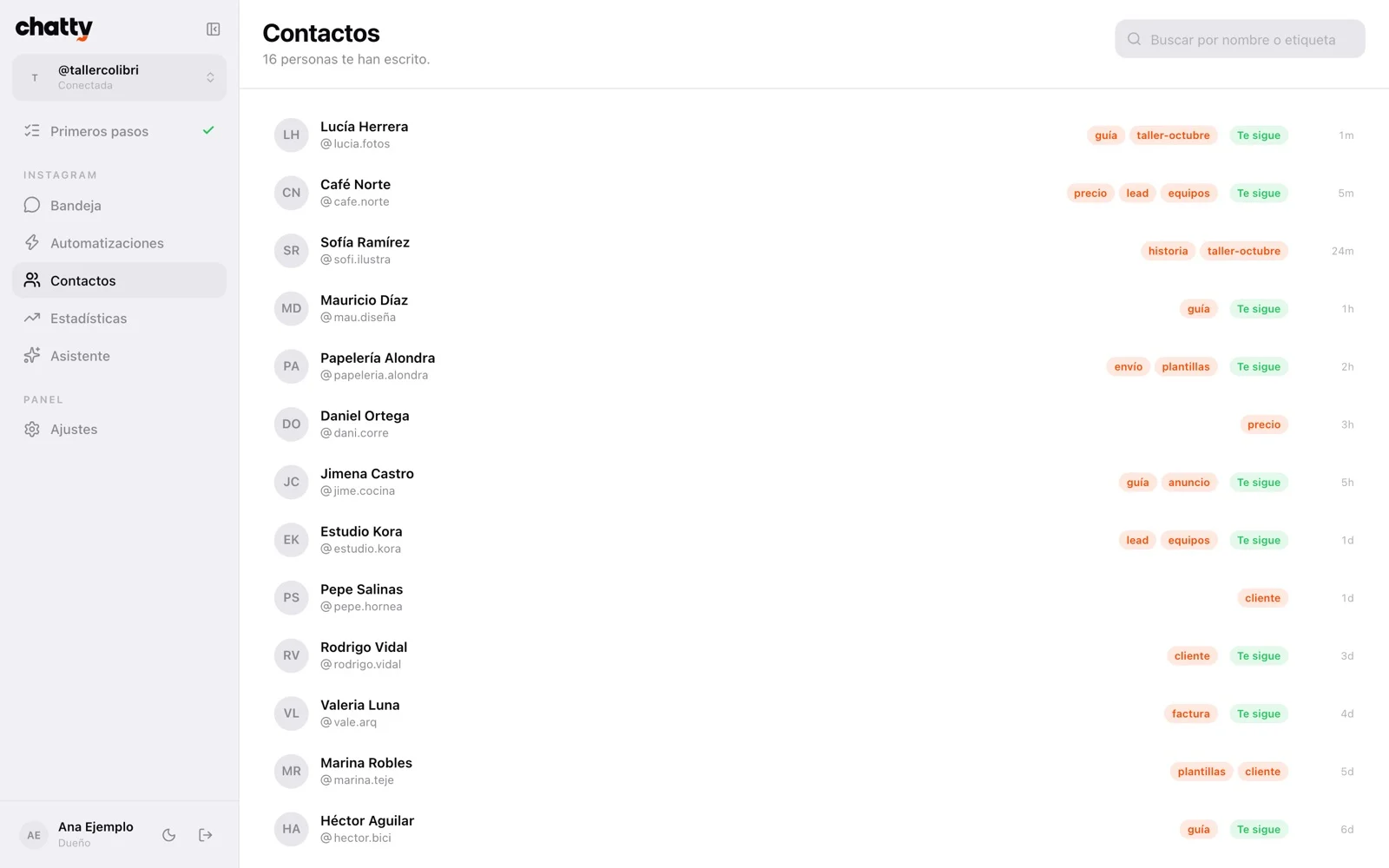
Step 6: Contactos (Contacts) and tags
Everyone who wrote to you or commented lands in Contacts: username, photo, whether they follow you (when Meta allows it), their tags, your notes and everything your flows captured.
Your flows add tags on their own (lead, customer, curious), and you use them to filter and to let conditions in other flows decide what to send.
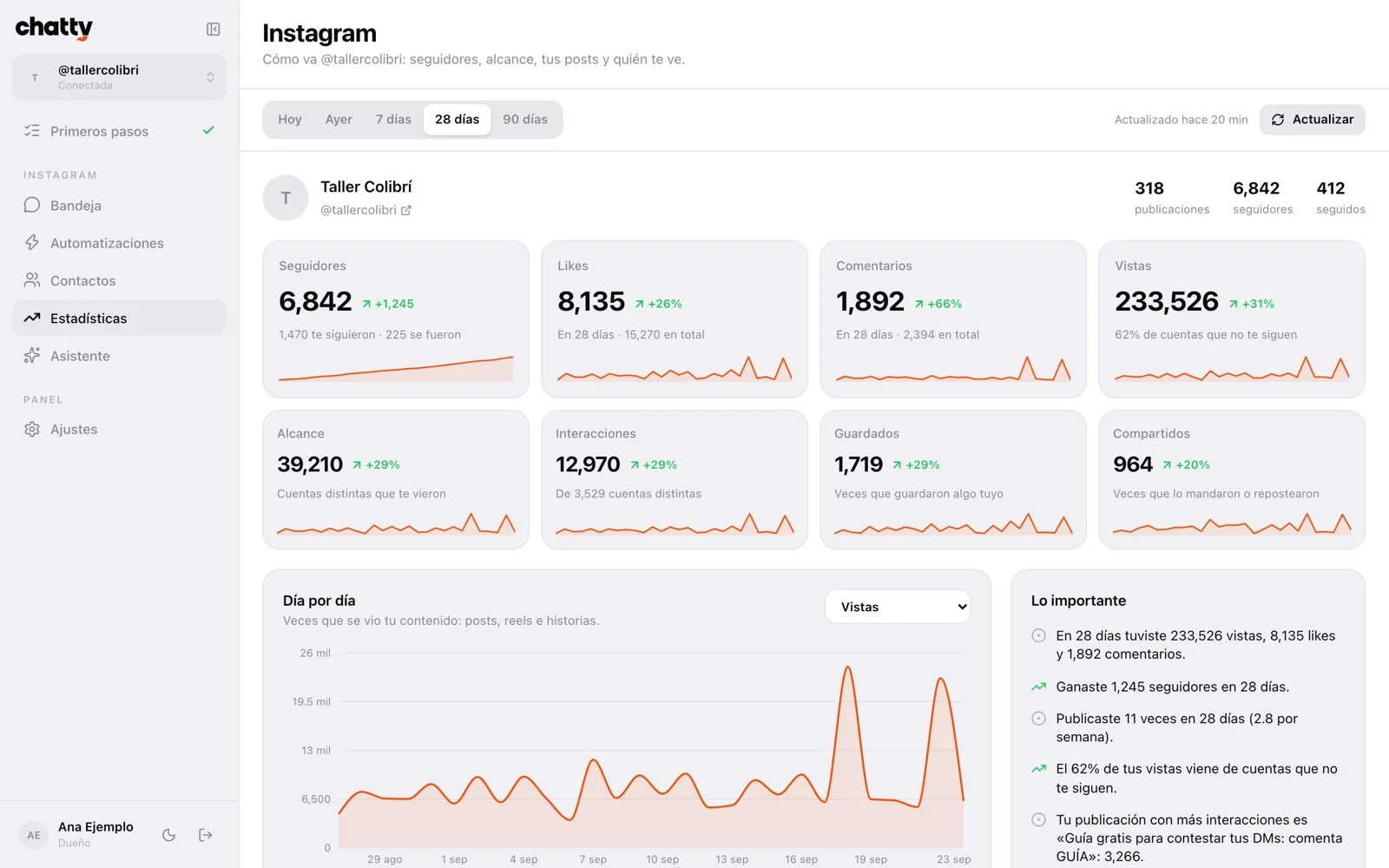
Step 7: Estadísticas (Analytics)
Followers day by day, reach, views, likes, comments, saves and shares, your posts with their numbers and the hours that work best for you. Periods: today, yesterday, 7, 28 and 90 days.
Chatty saves them every hour because Meta doesn't keep history: there's little on day one and it fills up by itself. If you see «Reconectar Instagram» (Reconnect), the analytics permission is missing in your Meta app.
Step 8: Asistente (Assistant): ask in one sentence
If you added your Claude API key, open Asistente and ask for what you want in your own words; it builds it for real in your account. It looks at your posts to know which one you mean, checks what you already have so it doesn't duplicate, and validates everything before saving.
It works for you, not for your followers: the bot never answers them with AI, only with the flows you built. It understands English too.
Examples for the assistant
When people comment GUIDE on my latest reel, DM them this link: https://… but only if they follow me.

If someone DMs PRICE, send them my prices and ask for their email.

Write 4 different public replies for when people comment INFO.
Step 9: The mobile app and push alerts
Open your panel on your phone and it takes you to the app: Hoy (Today), Bandeja (Inbox), Automatizar (Automate), Contactos (Contacts) and Más (More). On iPhone: Safari › Share › Add to Home Screen; on Android: Chrome › Install app.
In Ajustes › Notificaciones (Settings › Notifications) turn on alerts with one tap and choose which ones: automations you marked with the bell, new comments, round-number milestones and DMs nobody handled. On iPhone they only arrive with the app added to the home screen.
Step 10: Make it your brand
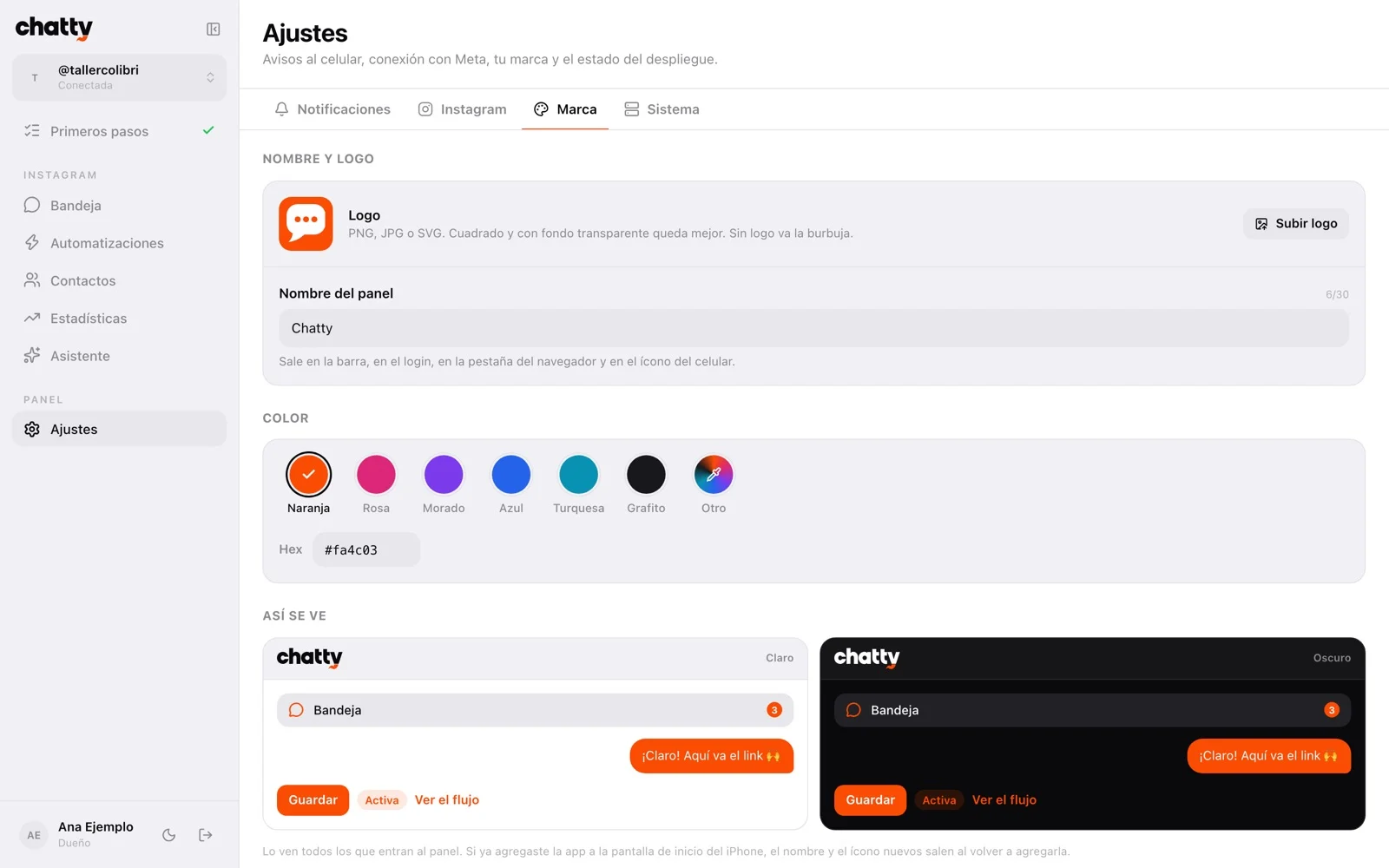
In Ajustes › Marca (Settings › Brand) you choose the panel's name, logo and color, with a light and dark preview. Everything repaints as you choose, and the phone app's icon comes from there.
If you install it for a client, the panel carries their brand, on their own Firebase.
Meta's rules, not Chatty's: one private DM per comment, text only, within 7 days; the bot only writes within 24 h of the person's last message; checking if someone follows you only works after they wrote or tapped a button; and accounts that aren't yours or testers of your Meta app need Meta's App Review.
Get it — $9.99 USD, one-time, no subscription. Your agent installs it with you.
Video — The inbox, a comment automation, flows, analytics and the app.
Want it without touching the terminal? We'll install it on your account and build your automations. Send me a message.