Guide · 5 steps
Design in Canva with Claude
A guide to making Canva designs from Claude, step by step.

Connect Canva with Claude: design with AI
Here's how to connect Canva to Claude and get more out of your designs. I'll walk you through it step by step so you can create great visuals directly with the help of AI.
Step 1: Open the connector settings
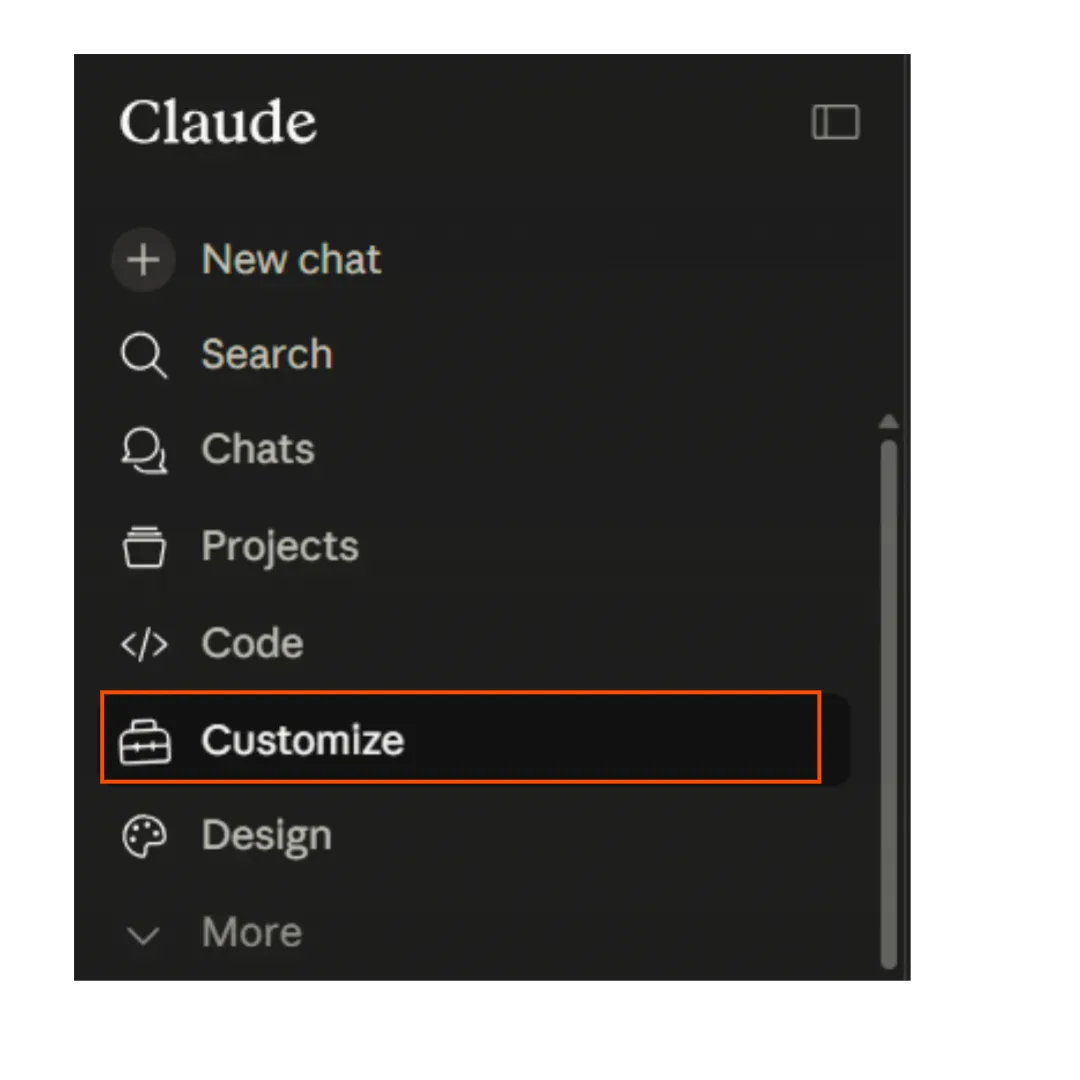
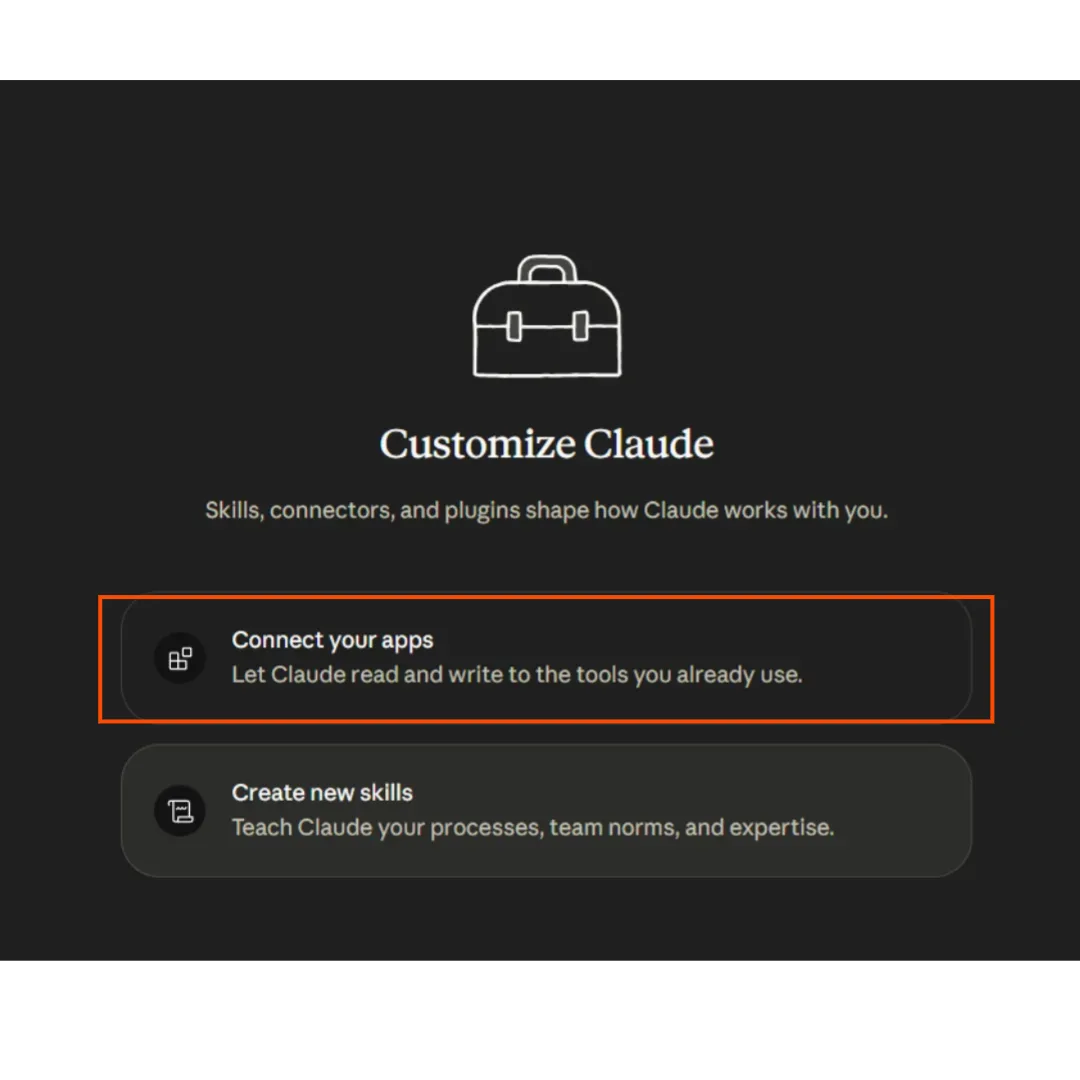
First, go to 'Customize' in Claude. Inside, find 'Connectors' and then select 'Connect your apps'. This is where you'll manage all your integrations.
Step 2: Find and authorize Canva
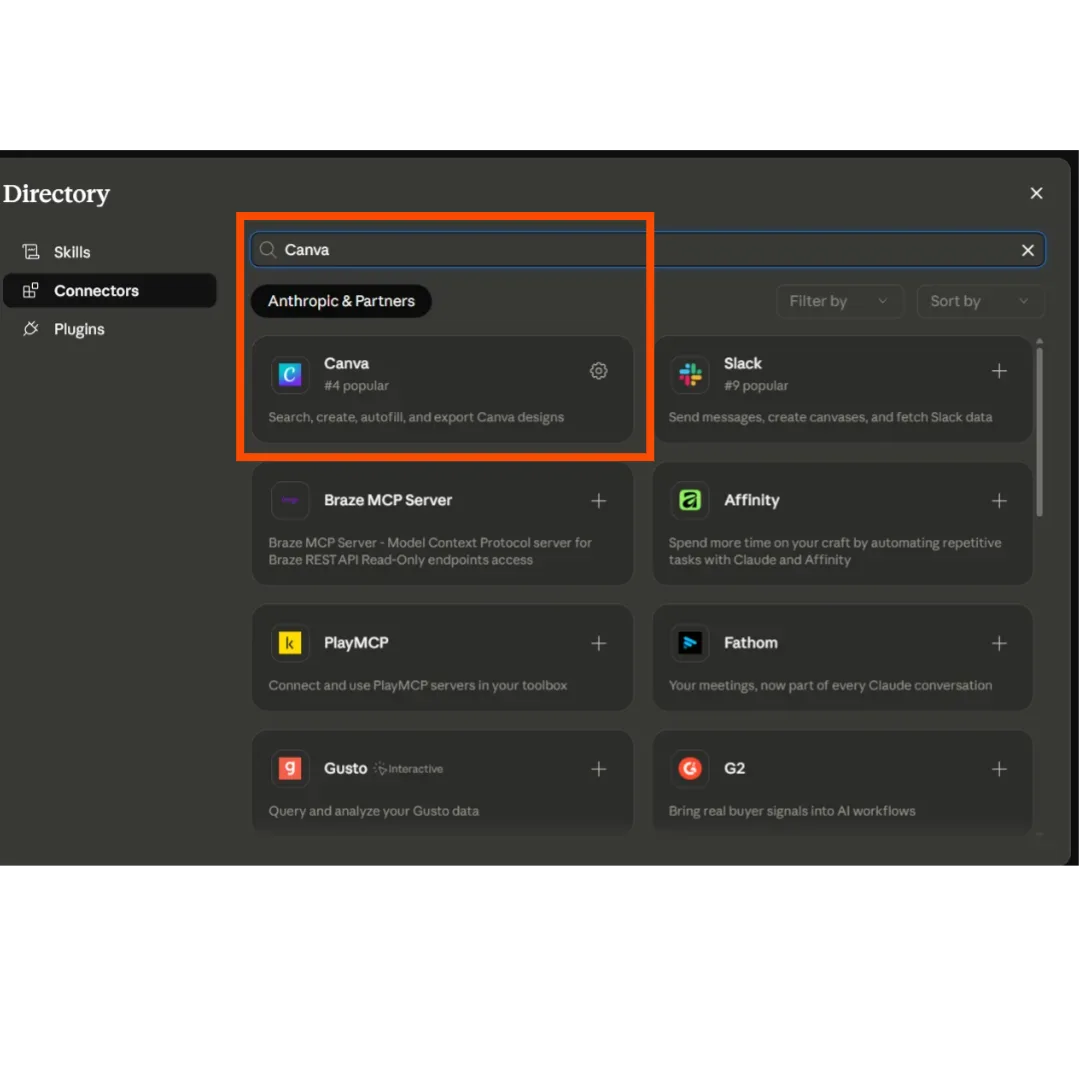
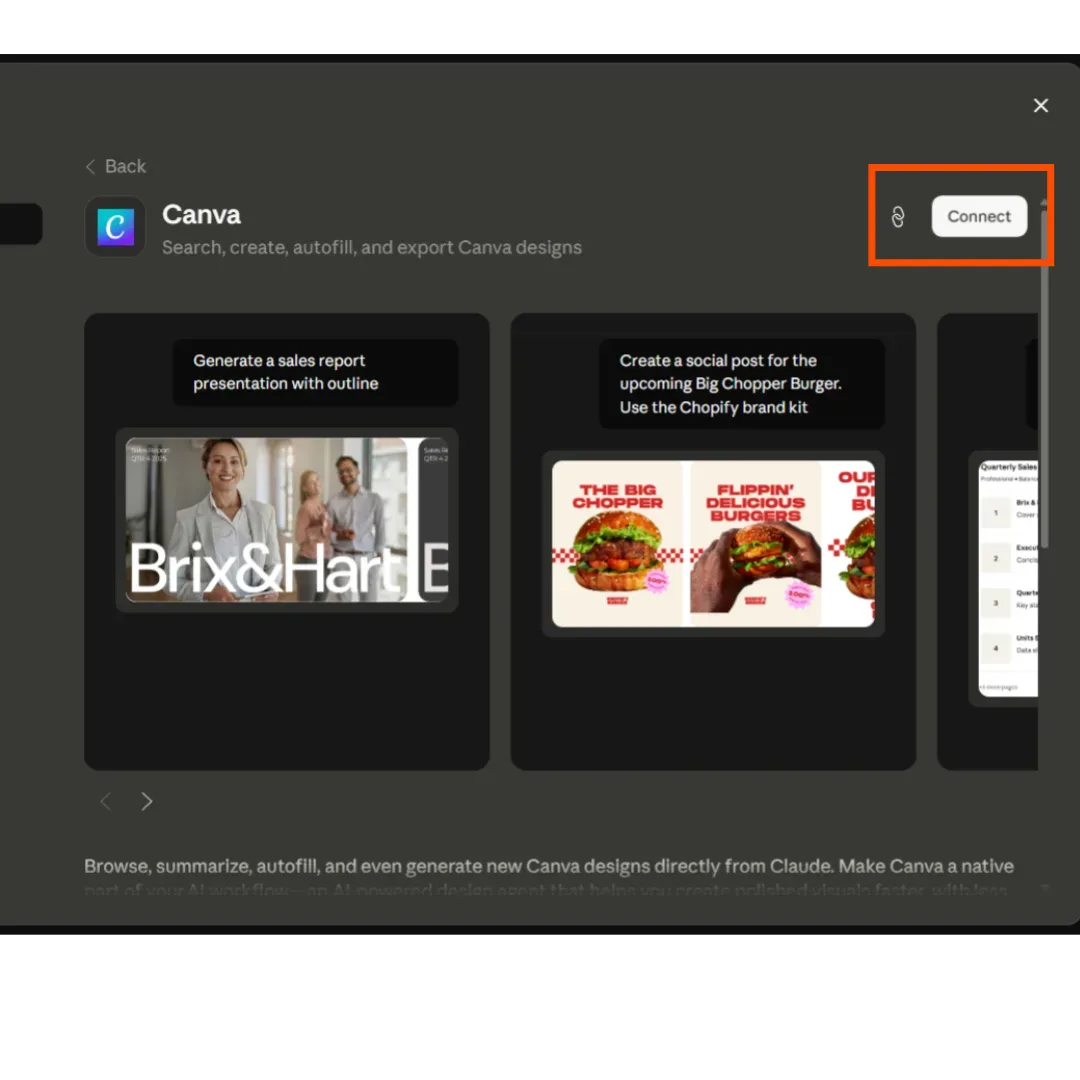
Once you're in the connectors section, use the search bar to find 'Canva'. Select it, and you'll be asked to sign in with your Canva account and accept the permissions it needs to connect.
Step 3: Check that it's on in a chat
With Canva connected, open any chat in Claude. Look for the '+' button (usually used to attach or add things), and under 'Connectors', make sure Canva is turned on.
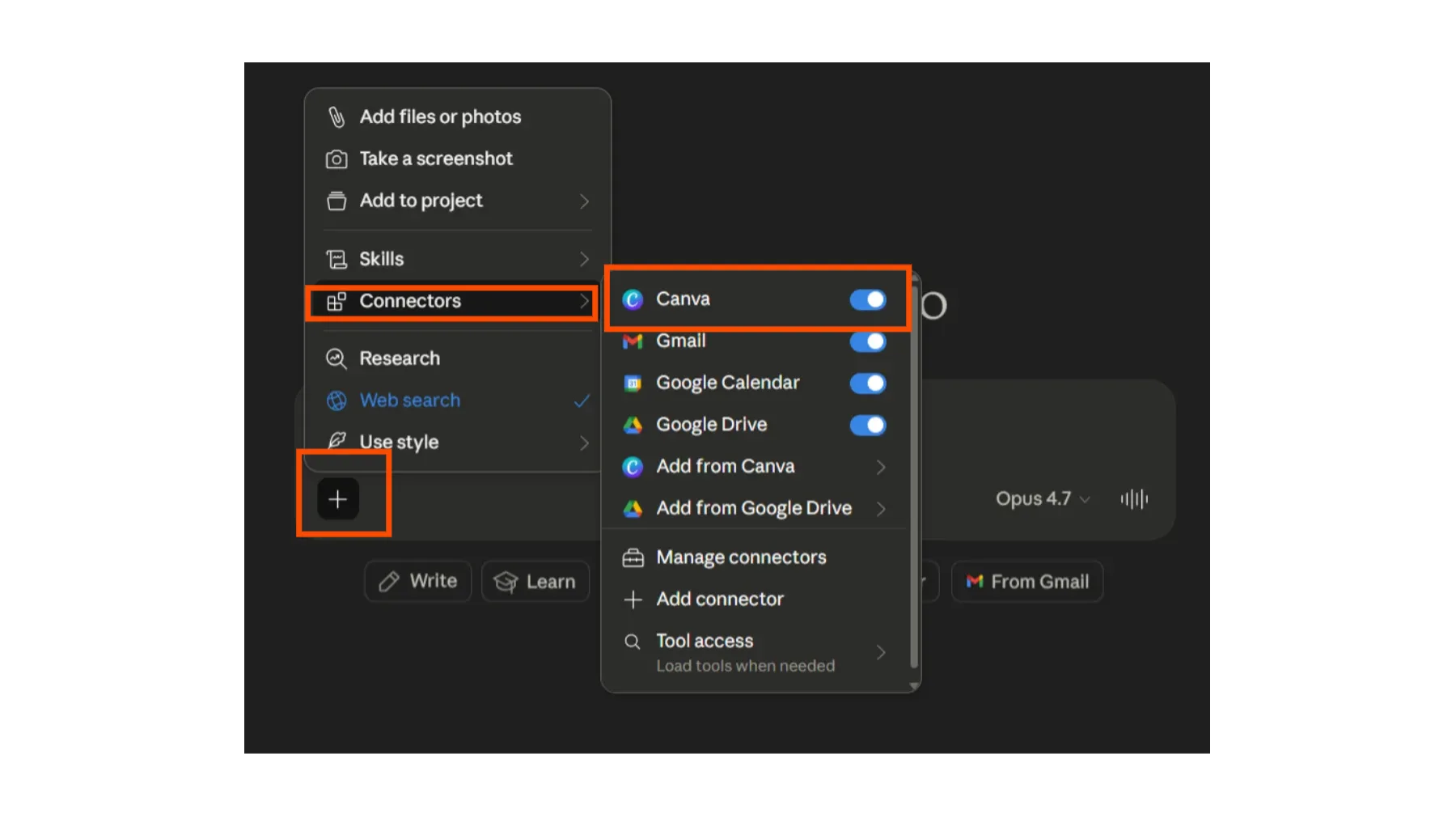
Step 4: Use Canva in your prompts
Now that everything's ready, you can ask Claude to use Canva. Just write your prompt and make it clear you want it to create designs or ideas through Canva.
Example prompt for Claude with Canva
Create an Instagram post with Canva. The topic is '5 tips to boost your productivity'. Use vibrant colors and a modern style. Include space for text and a fitting icon for each tip.
Step 5: Get your design options!
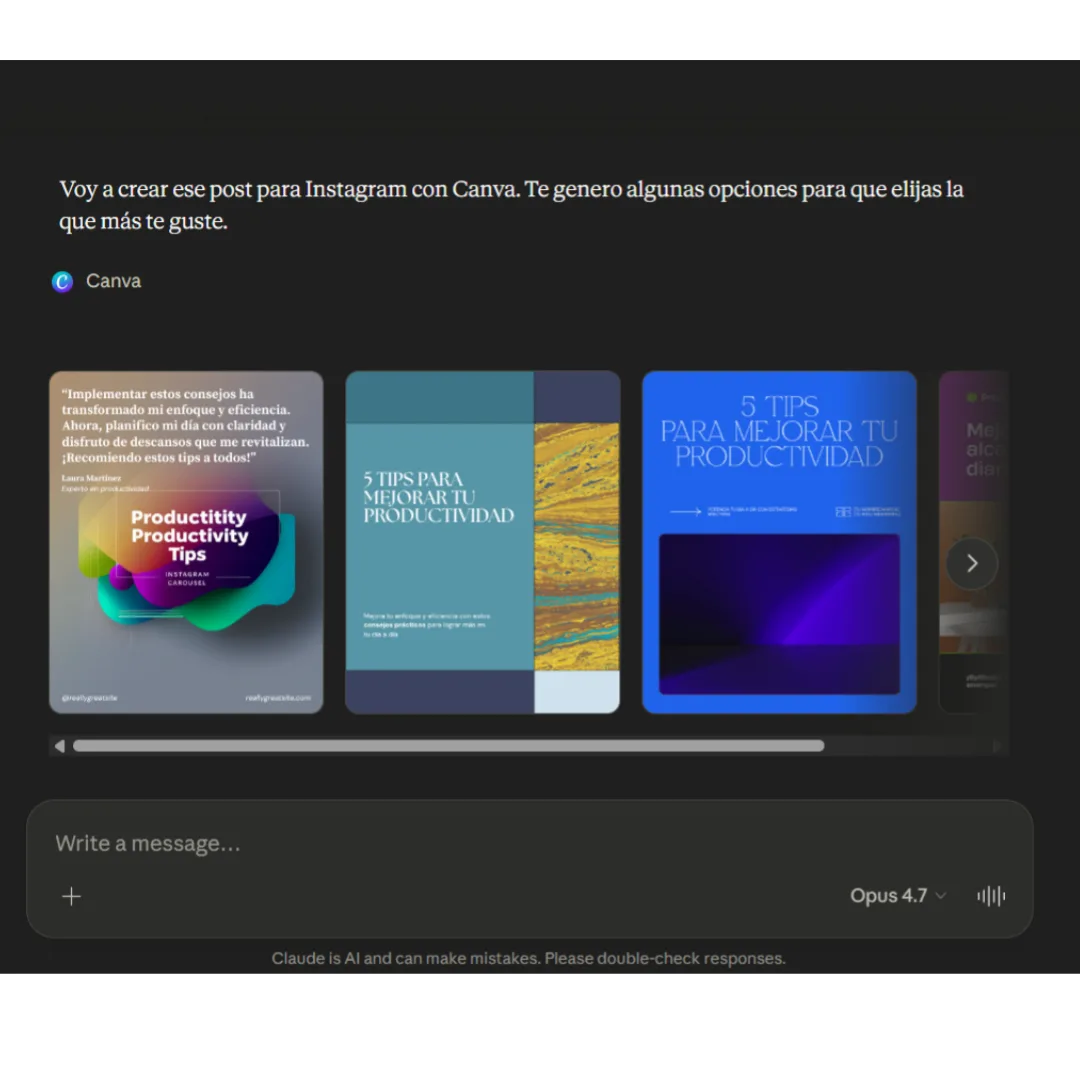
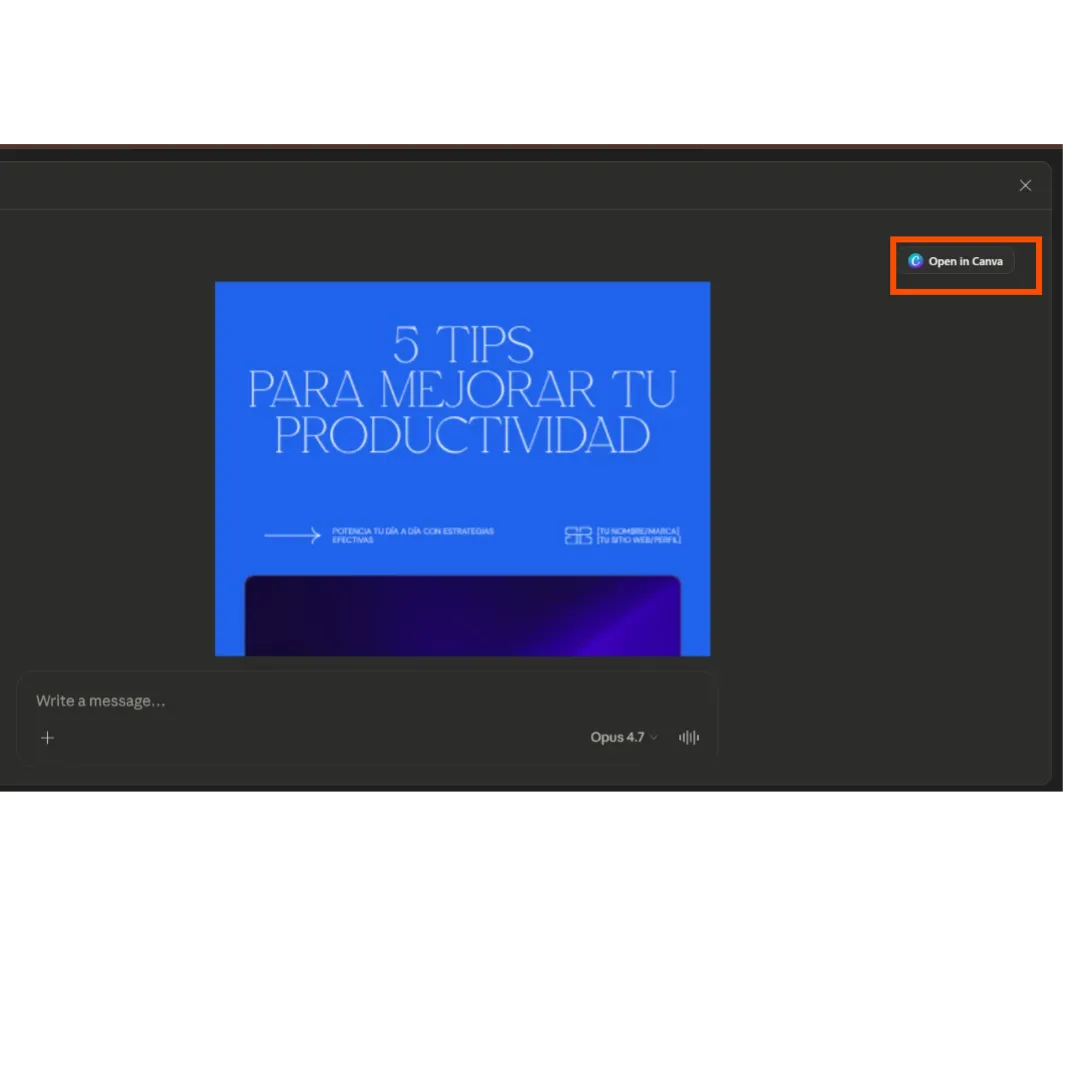
Once you send your prompt, Claude works on your request and, if everything's set up right, gives you several design options or walks you through creating something in Canva directly.
Want to learn this, or have your own system? Send us a message and we'll walk you through it.