Guide · 4 steps
Edit videos with Claude
How to make animations and video edits with Claude, step by step.

Edit videos from the terminal with Claude
Here's how to use Claude in your terminal to create and edit videos, going back and forth with it until they're right. Great for quick tests or creative ideas.
Step 1: Open Claude in your terminal
To start, open your terminal (or command line) and just type `claude`. That starts a session with your AI assistant.
If you don't have Claude installed yet, you can install it globally with this command in your terminal: `npm install -g @anthropic-ai/claude-code@latest`
Step 2: Install the Remotion skill
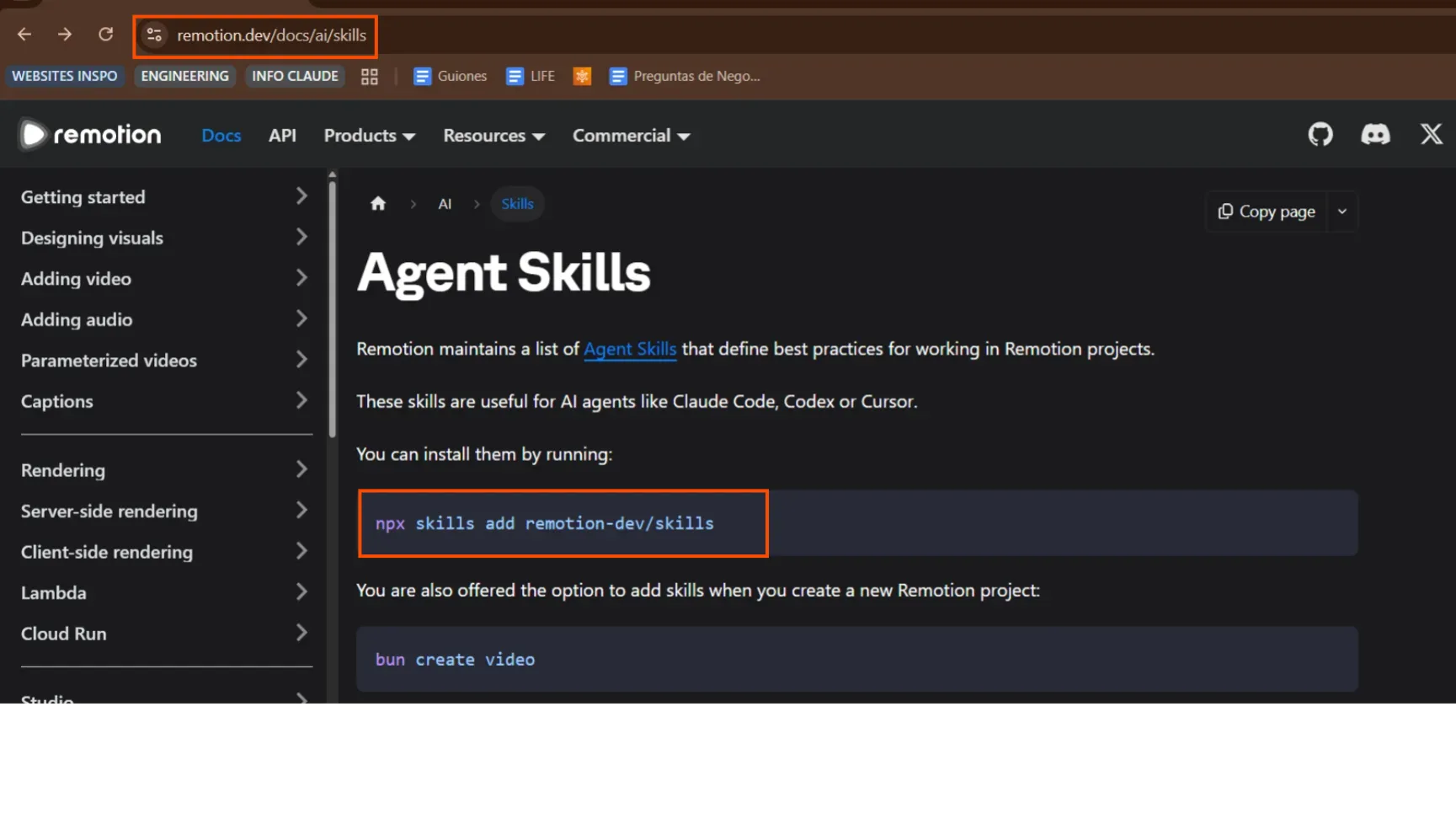
Claude needs a "skill" or an "MCP" to work with video. Install the Remotion one, which lets it generate and edit visual content, by running this command: `npx skills add remotion-dev/skills`
Step 3: Ask Claude to make a video
With the Remotion skill installed, you can now ask Claude to make a video. Be specific about what you want to get better results.
Example prompt
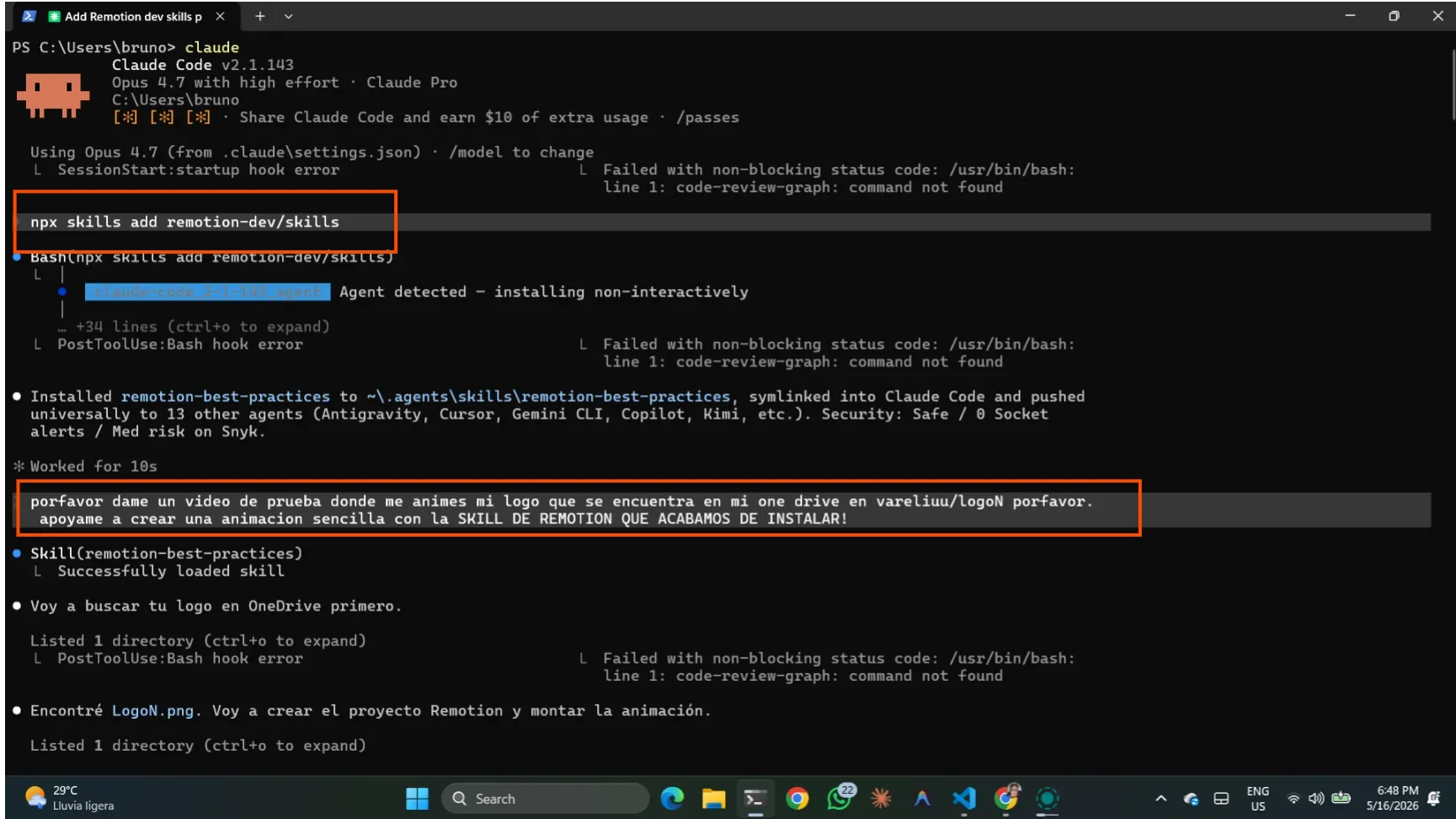
please make me a test video where you animate my logo, it's in my OneDrive at vareliuu/logoN please.
help me make a simple animation with the REMOTION SKILL WE JUST INSTALLED!
Step 4: Ask for changes or preview your video
Once Claude shows you the video, you can ask it for tweaks, like changing the text, the colors, the length or even the style. You can also ask it to show you the video directly.
Be as specific as you can. It also helps to ask for a video that's simpler to direct, so it does a better job :)