Guide · 2 steps
Connect Claude with Higgsfield
Connect Higgsfield and Claude so you can stop copying and pasting prompts: the AI writes them and generates the images for you.

Connect Claude with Higgsfield
In this guide I show you how to connect Claude (the app) with Higgsfield (the image connector) so you can generate visual content automatically. It takes ~15 min to set up once; after that, you just ask.
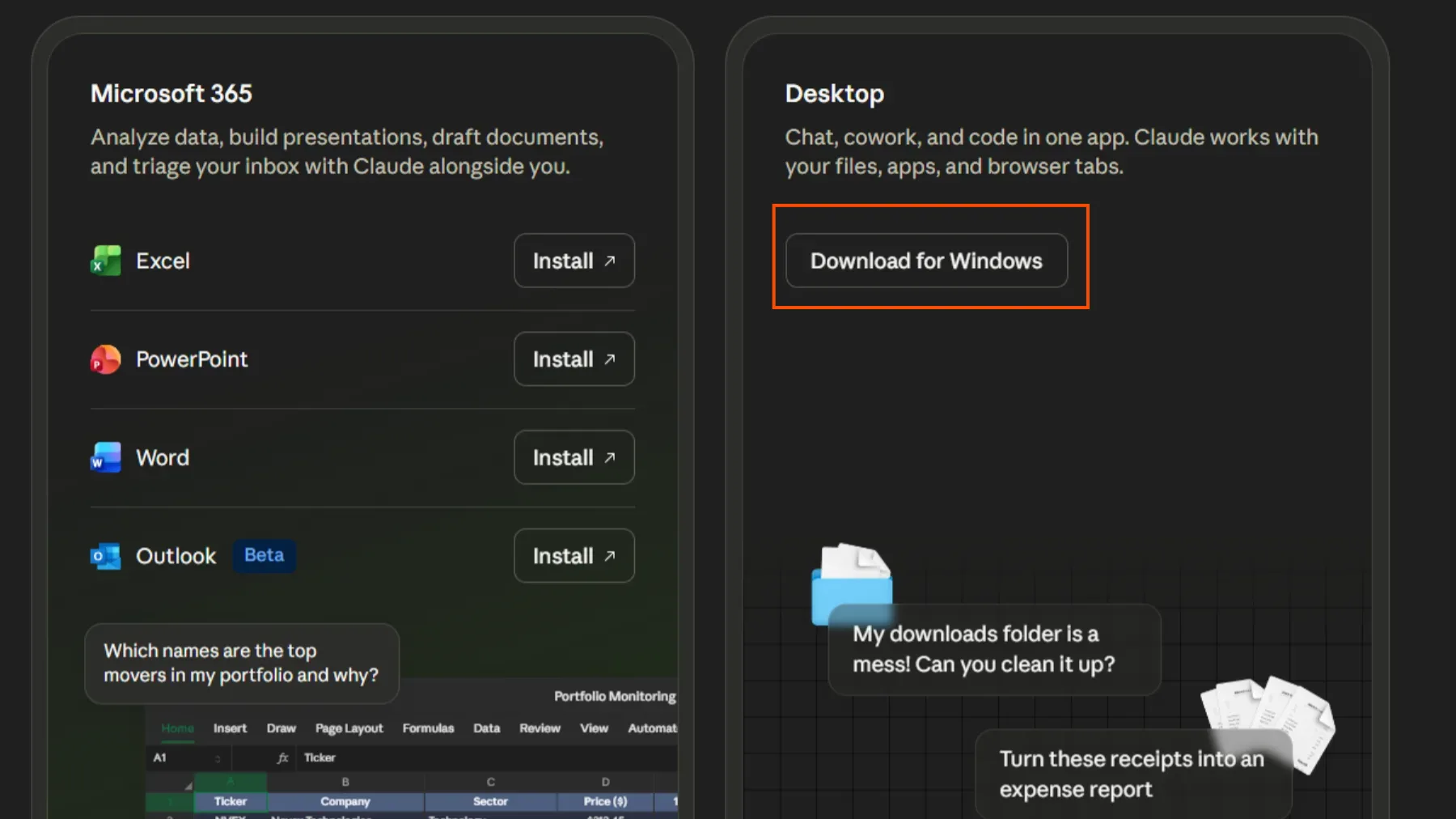
Step 1: Install Claude
Go to claude.ai, download the desktop app and create your account. Open Cowork mode (the one that can use files and tools on your computer). That's where you'll work.
Step 2: Add the Higgsfield connector
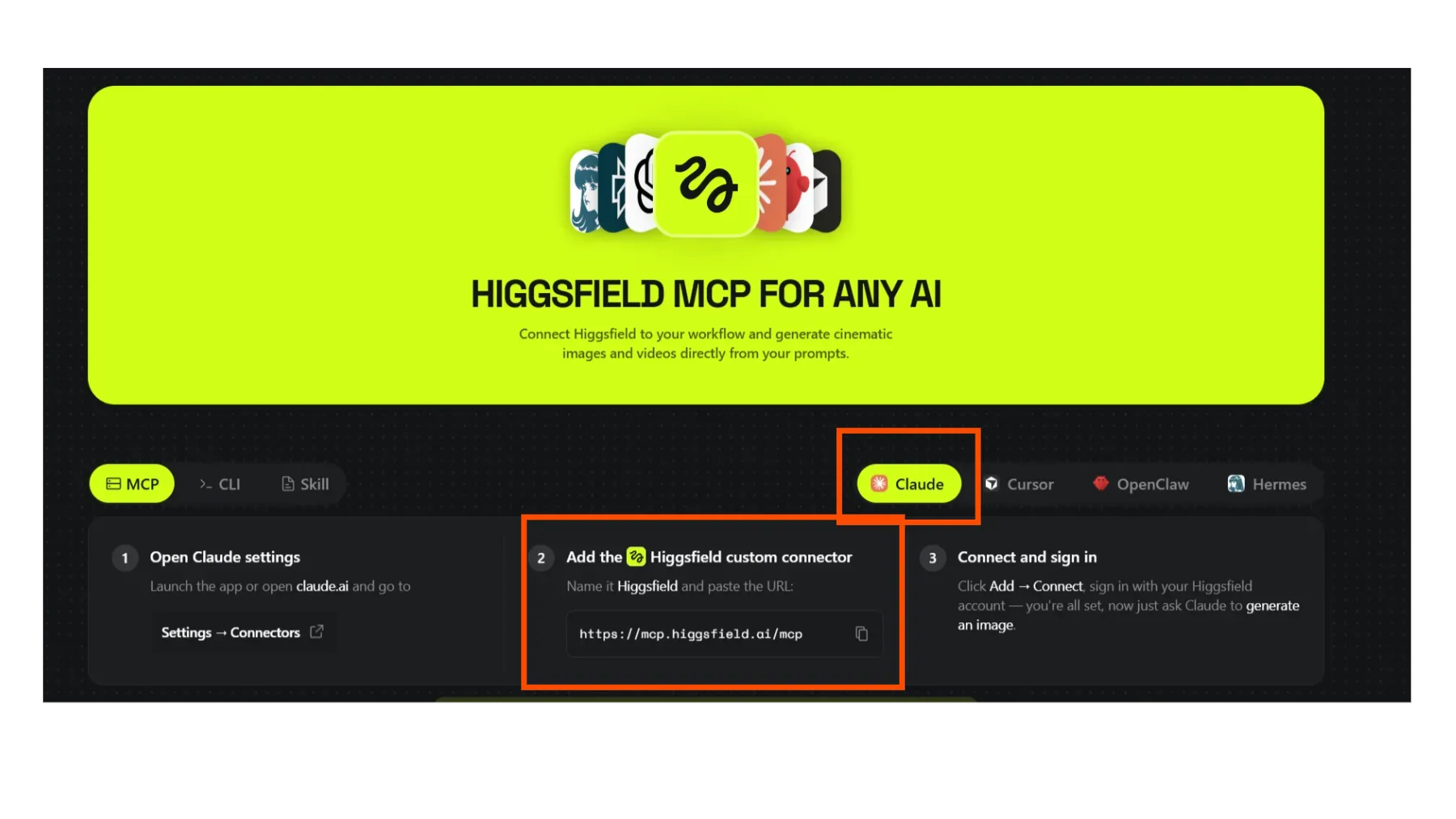
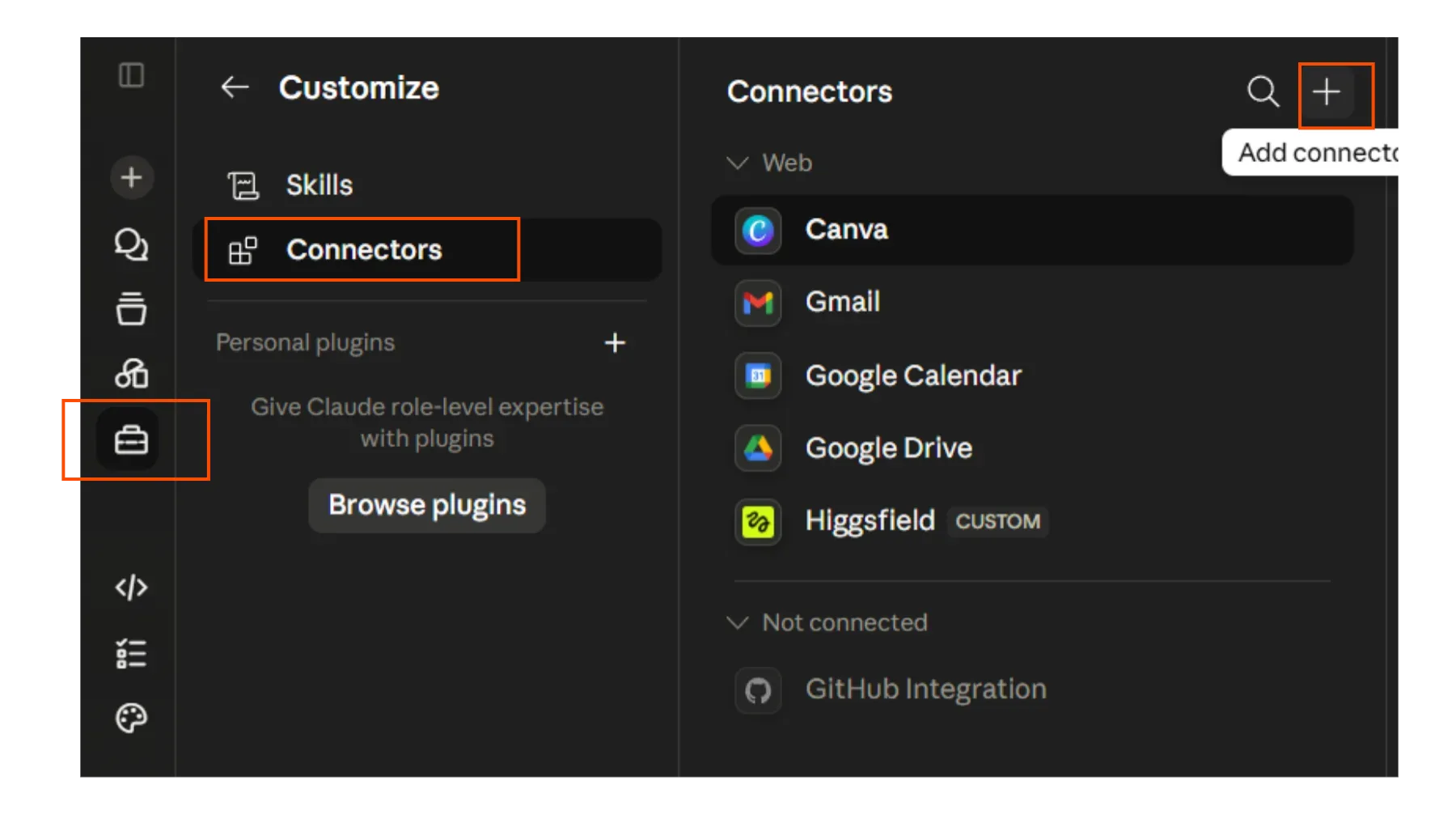
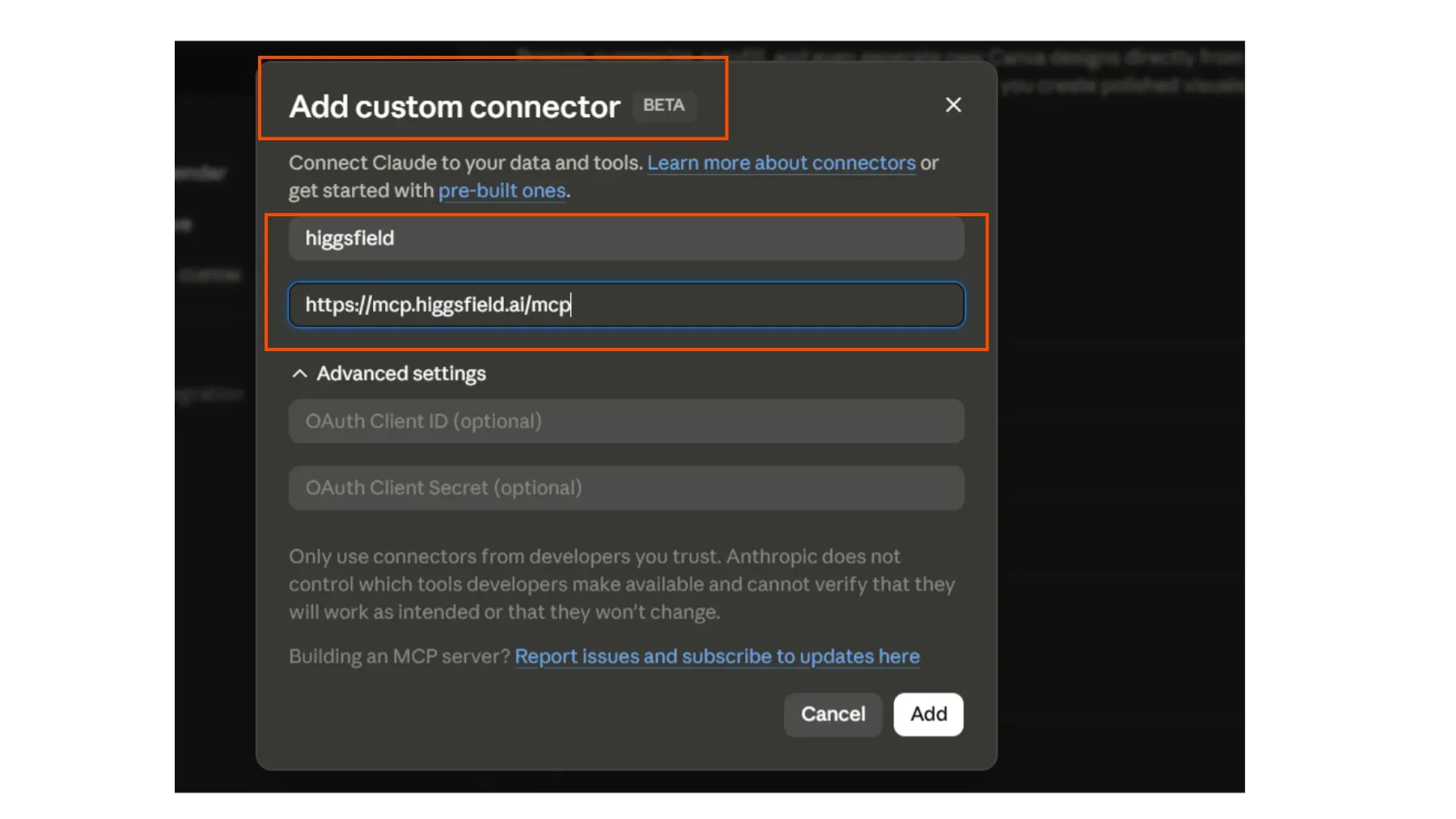
Higgsfield is what generates the images. In Claude, go to Settings → Connectors (MCP) and add Higgsfield. Once it's connected, Claude can create images for your posts without you ever leaving the app.
CODE: https://mcp.higgsfield.ai/mcp
DISCLAIMER: Higgsfield costs money, check the plans first
This is a basic guide, but it gets the job done. If you want to see examples of how to use it, the guides below are perfect for you!
Need help with your AI strategy? Let's talk about how to bring these tools into your business. Send me a WhatsApp!